Logging
Anomalib offers various mechanisms for logging metrics and predicted masks.
Enabling Logging
These can be enabled using the logger parameter in logging section of each model configuration file. The available options are tensorboard, wandb and csv.
For example, to log to TensorBoard:
logging:
    logger: "tensorboard"
You can also pass a list of loggers to enable multiple loggers. For example:
logging:
  logger: [tensorboard, wandb]
  log_graph: false
Logging Images
Anomalib allows you to save predictions to the file system by setting log_images_to: local. As of the current version, Anomalib also supports TensorBoard and Weights and Biases loggers for logging images. These loggers extend upon the base loggers by providing a common interface for logging images. You can access the required logger from trainer.loggers. Then you can use logger.add_image method to log images. For a complete overview of this method refer to our API documentation.
logging:
  log_images_to: ["local", "tensorboard", "wandb"]
  logger: [tensorboard, wandb]
  log_graph: false
Note
Logging images to TensorBoard and wandb won’t work if you don’t have logger: [tensorboard, wandb] set as well. This ensures that the respective logger is passed to the trainer object.
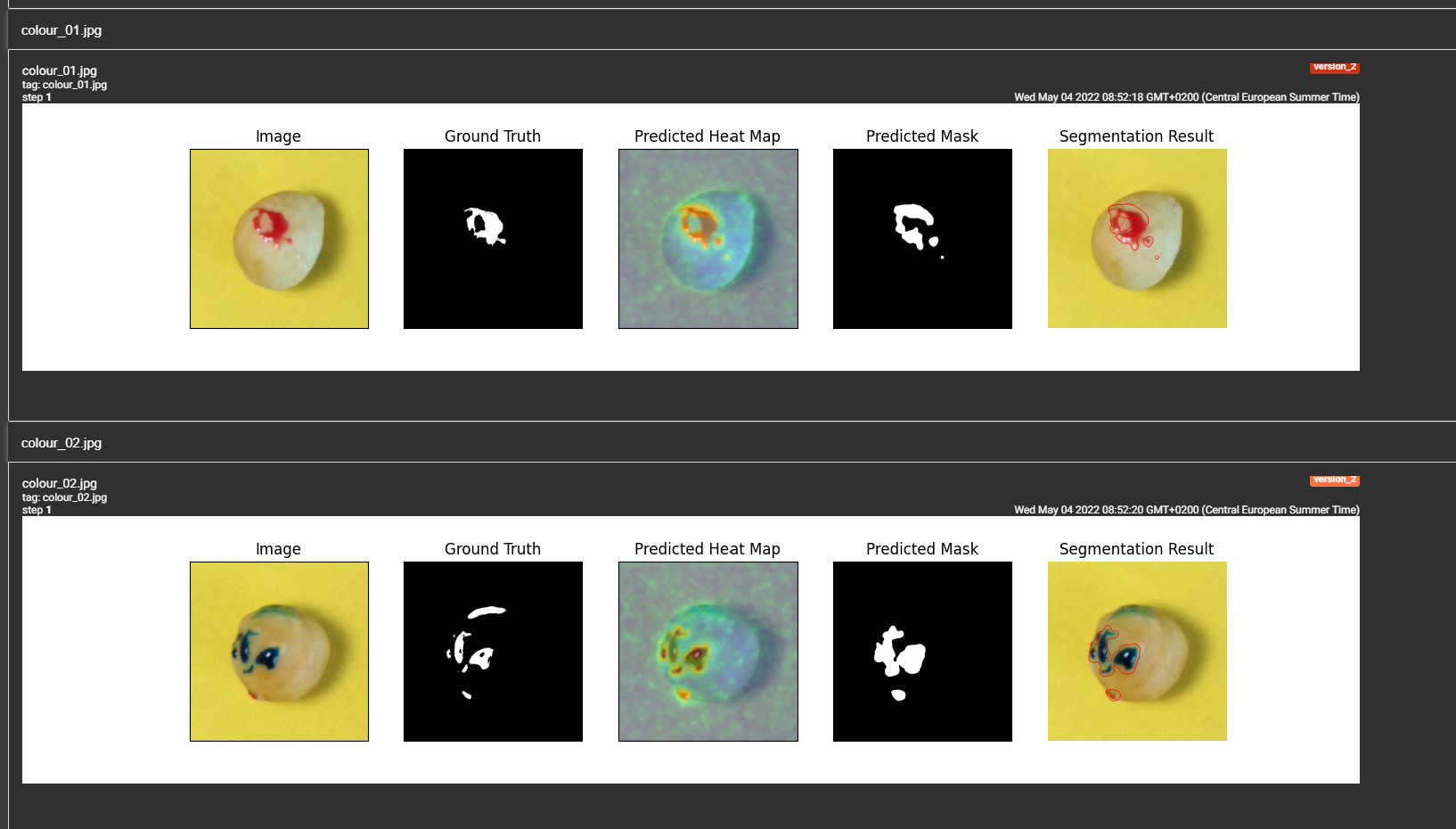
Logged Images in TensorBoard Dashboard

Logged Images in wandb Dashboard
Logging Other Artifacts
To log other artifacts to the logger, you can directly access the logger object and call its respective method. Some of the examples mentioned here might require making changes to parts of anomalib outside the lightning model such as train.py.
Note
When accessing the base logger/logger.experiment object, refer to the documentation of the respective logger for the list of available methods.
Anomalib makes it easier to log your model graph to TensorBoard or Weights and Biases. Just set log_graph to True under logging parameter of the model configuration file.
logging:
  logger: [tensorboard]
  log_graph: true
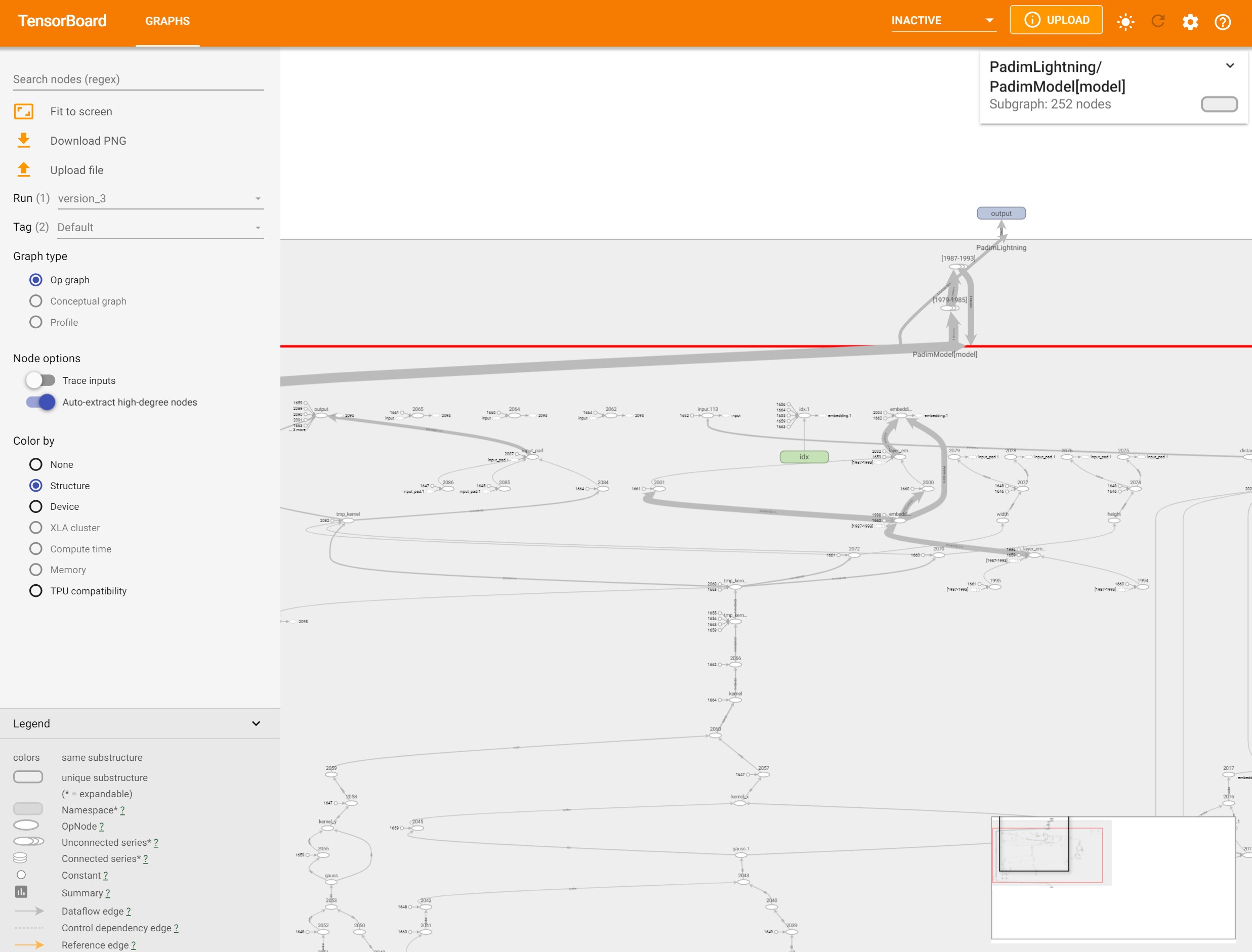
Model Graph in TensorBoard Dashboard